OVX checks documents that carry a CL03 code, a signed QR code, offline on your phone.
Getting started
OVX works with organizations that issue or accept CL03 documents.
- Ask your organization’s administrator for a pairing code.
- Open OVX, allow the camera, and scan the pairing code.
- When asked, unlock with Face ID or your passcode. The phone creates its keys in its Secure Enclave.
A phone that has not been paired cannot check documents, except the samples below.
Try it without an organization
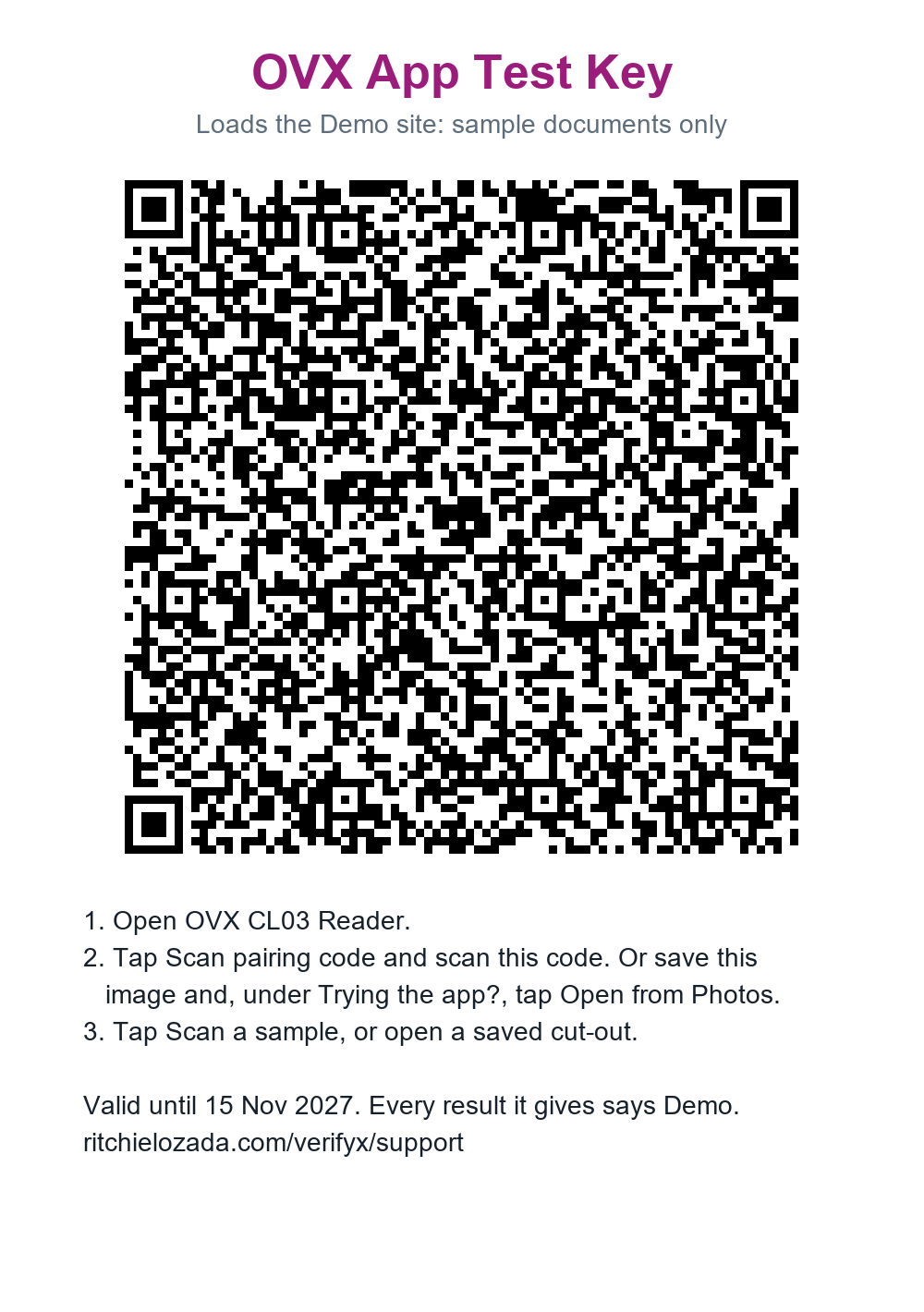
The App Test Key lets any phone check the sample documents on this page, with no pairing. Every result it gives says Demo, and none is shown as a genuine document.
- Open OVX. On the first screen, tap Scan pairing code and scan the App Test Key below. Or save its image to your iPhone and, under Trying the app?, tap Open from Files or Open from Photos.
- On the Demo screen, tap Scan a sample and scan a cut-out from this page, or open a saved one from Files or Photos.
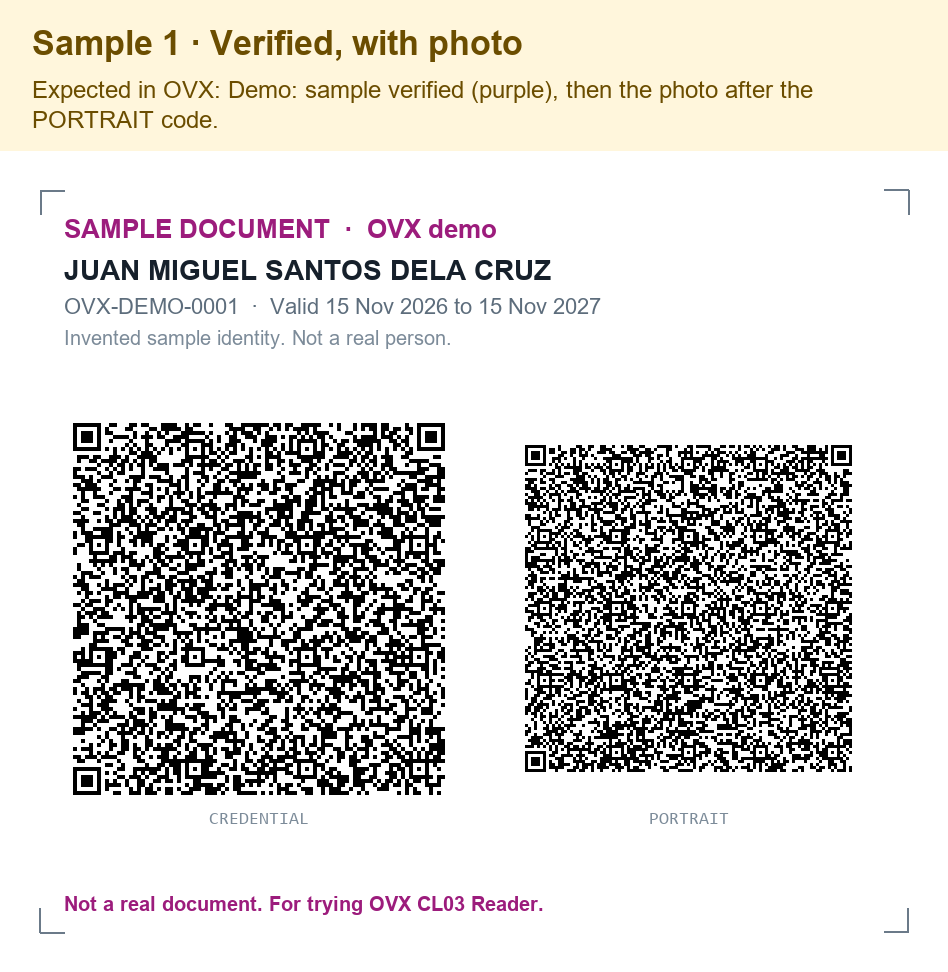
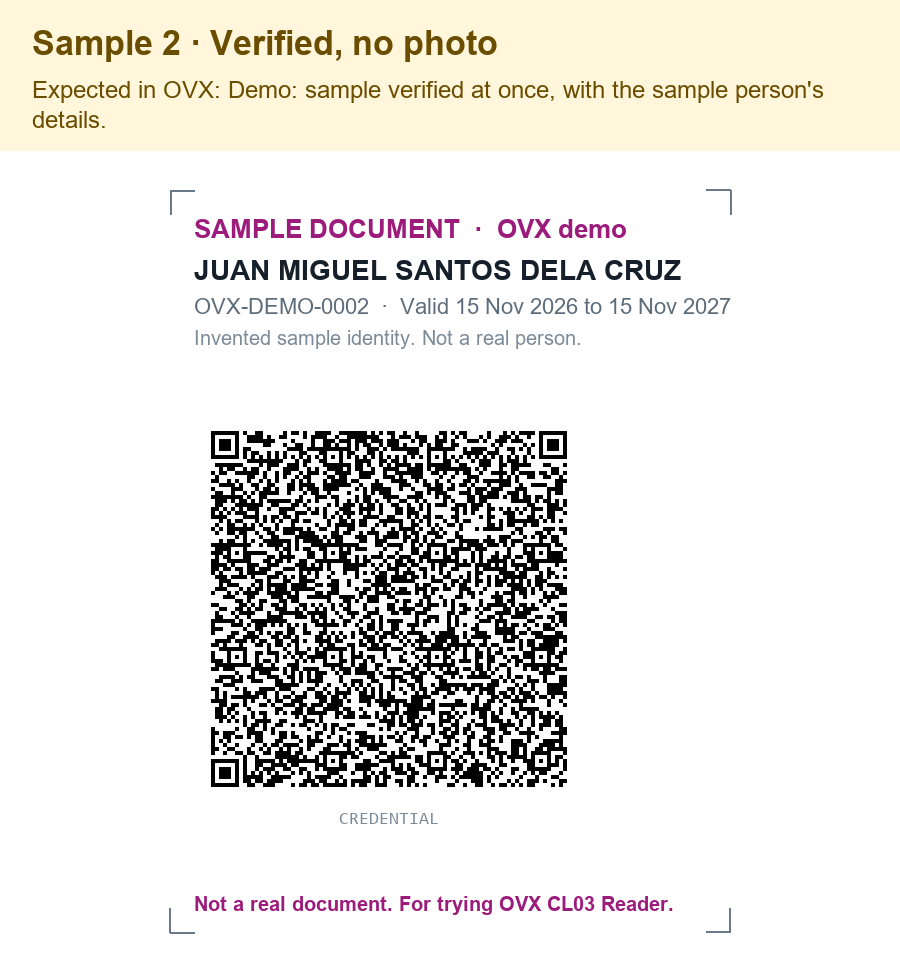
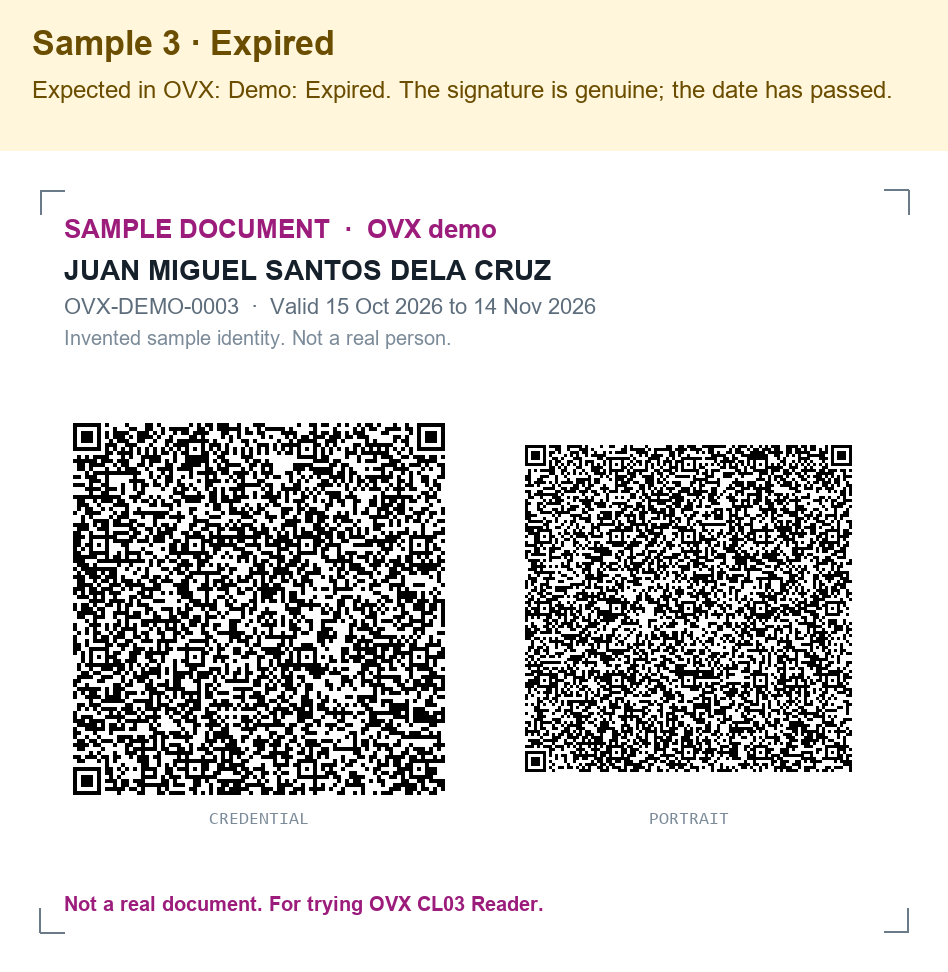
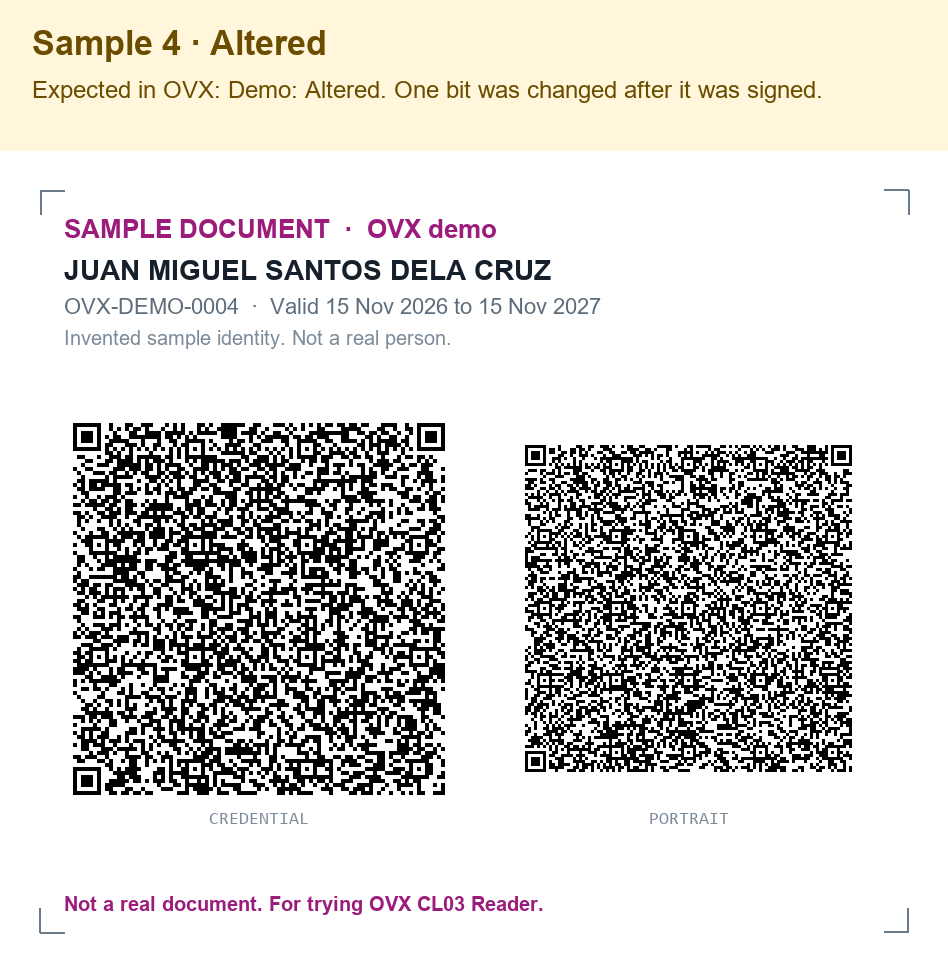
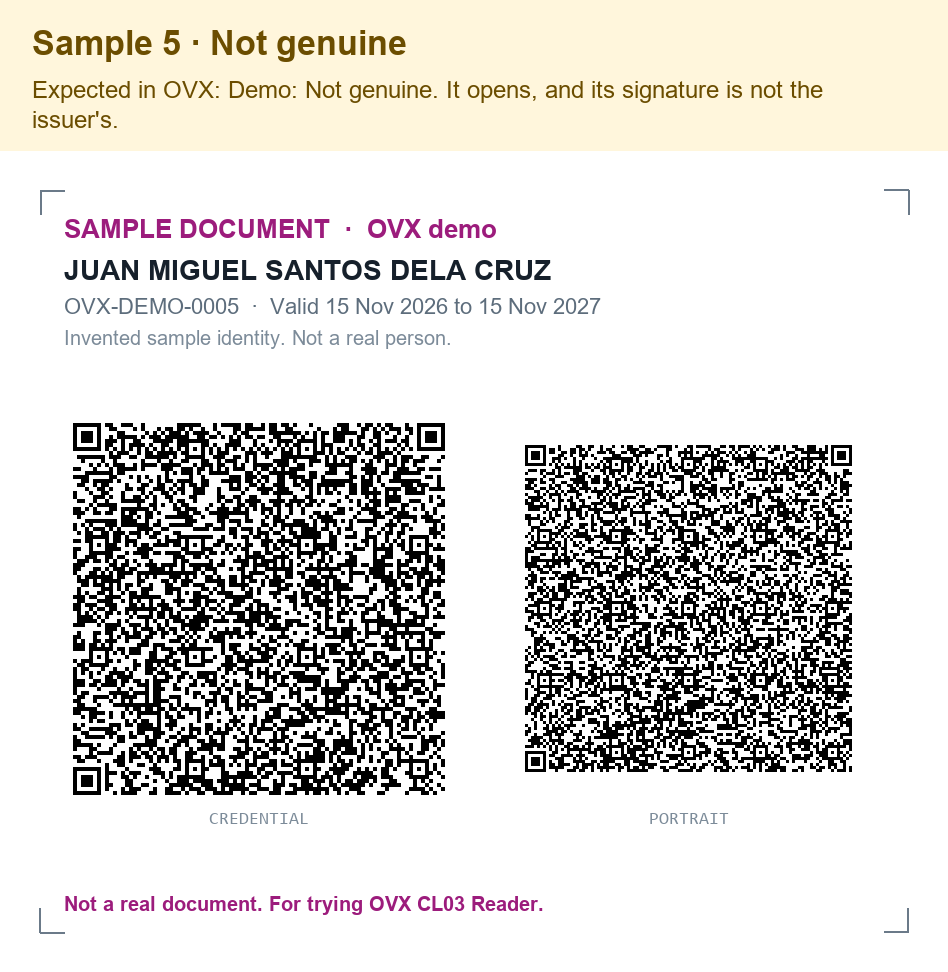
To stop, remove the key in Settings > Demo. The samples use an invented person; no real person’s data is in them.
Common questions
Pairing does not work. Make sure the phone is online, then ask the administrator for a new pairing code.
“This phone needs to sync.” The organization’s keys have moved on. Connect to the internet and tap Sync keys now.
A document reads “Not genuine” or “Altered”. Do not accept it. Keep the document, and quote the reason and the time shown on the result when you report it to the organization.
Face ID does not recognise you. Choose Use passcode in the prompt.
Changing phones. Pair the new phone with a new code, and ask the administrator to remove the old one.
Privacy
Scanned documents never leave your phone. See the privacy policy.
Contact
Use the form below.


You must be logged in to post a comment.